WhatsApp Business on a Computer: How to Install It, Log In via the Web Version and Work as a Team
Guides9 min read
How to open WhatsApp Business on a computer: the Windows and Mac app, the web version, logging in with a QR code, common errors and working as a whole team.

You can open WhatsApp Business on a computer in three ways: through the app for Windows and macOS, through the web version in a browser, or through a CRM connected to the company number. The app and web version are linked to the phone by QR code and suit one person.*
If two or more managers work with clients, a CRM is more convenient: each sees their own chats, and conversations are stored in client cards.
Why work in WhatsApp Business from a computer
- Speed. Replying on a keyboard is 2–3 times faster than on a phone.
- Files. Price lists, invoices, contracts and photos are easier to send from a computer.
- Multitasking. The CRM, spreadsheets and email are open alongside — no switching between devices.
- Teamwork. Messages aren't visible only on the administrator's phone.
Method 1. The desktop app
The desktop app is more stable than the browser and sends notifications even when the window is minimised.
Installing on Windows
- Download the WhatsApp app from the Microsoft Store or the official website.
- Launch it — a QR code appears on the screen.
- On your phone, open WhatsApp Business → Settings → Linked devices → Link a device.
- Point the phone's camera at the QR code.
- Wait for the chats to sync.
Installing on a Mac
- Download the app from the App Store or the official website.
- Open it and scan the QR code with your phone, just as on Windows.
- Allow notifications in the system settings so you don't miss messages.
The same desktop app works for both regular and business accounts — the account type is determined by the phone you link to.
Method 2. The web version in a browser
Suits situations where you can't install software on a work computer.
- Open WhatsApp's web version in your browser.
- On your phone, go to Linked devices and scan the QR code.
- Don't close the tab — otherwise notifications stop arriving.
- To avoid logging in every time, don't clear the browser data for this site.
If the web version doesn't open on your network or browser, use the desktop app or a CRM.
Method 3. Through a CRM
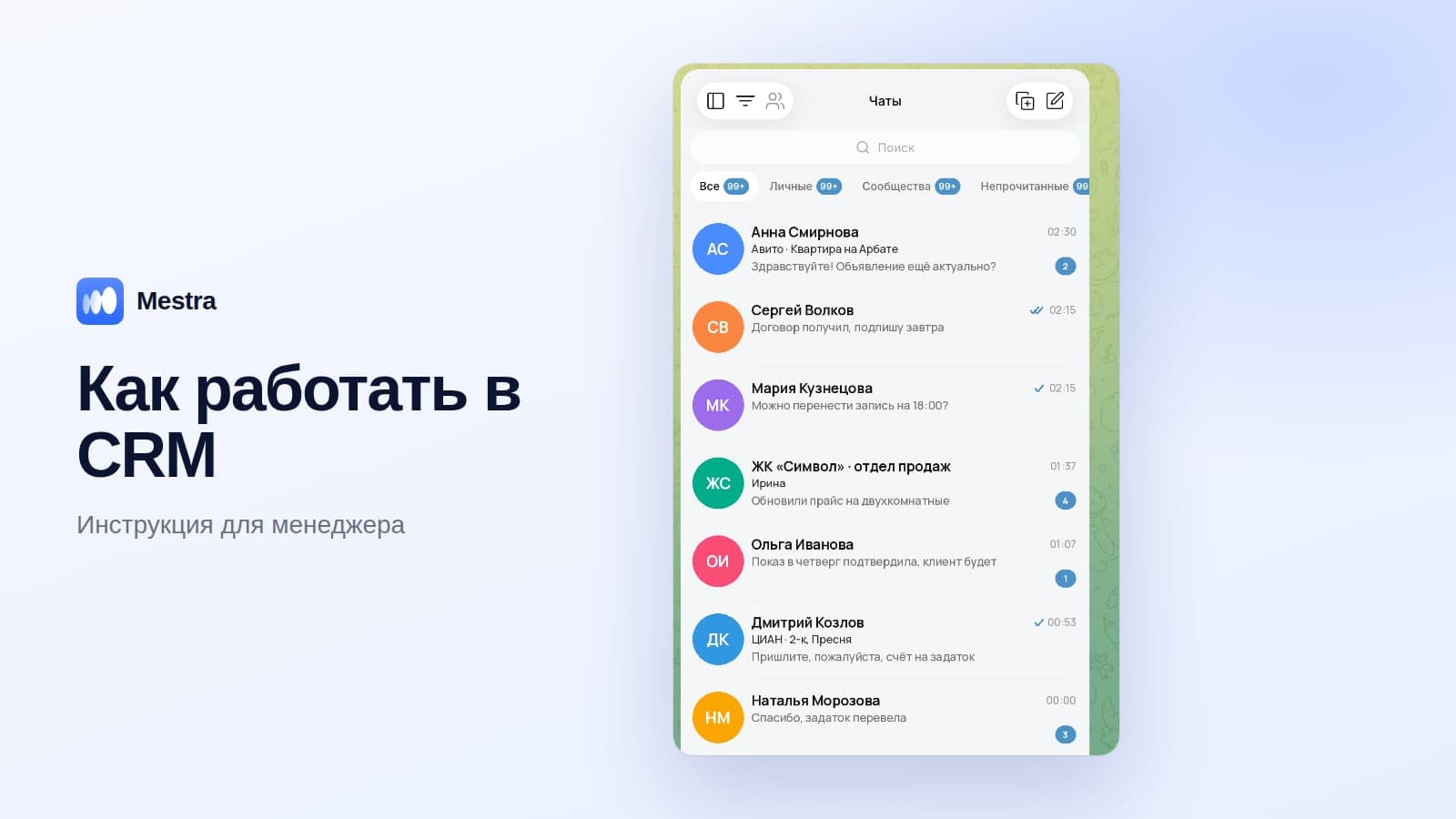
The company number is connected to the CRM once, after which messages arrive in a shared feed along with MAX, Telegram and Avito. A manager doesn't need a phone or a separate tab: they log into the CRM with their own login and see the clients assigned to them.
Comparing the methods
| App | Web version | CRM | |
|---|---|---|---|
| Installation | Required | Not required | Not required |
| Notifications with the window closed | Yes | No | Yes |
| How many people can work | One per device | One per tab | The whole team |
| Assigning a client to a manager | No | No | Yes |
| Other messengers in the same window | No | No | MAX, Telegram, VKontakte, Avito |
| Client card, tasks, payments | No | No | Yes |
| Who replied and how fast | No | No | Yes |
| AI replies at night | No | No | Yes |
Features on a computer: what's available and what isn't
On a computer you can chat, send files and photos, voice messages, search chats, use labels and quick replies. Some business profile settings — the catalogue, greeting and away message — are easier to change on the phone: they aren't always available in the desktop app.
The full list of keyboard shortcuts is available in the app menu — they noticeably speed up work when there are many messages.
Common errors and how to fix them
The QR code won't scan
Enlarge the window or zoom the page, wipe the camera, and check that the phone is online. If that doesn't help, refresh the QR code using the button on screen.
Chats don't sync
Make sure the phone is online and wait a few minutes. If the history still doesn't appear, log out on the computer and link the device again.
Notifications don't arrive
Check notification permissions in the system and browser, and turn off Do Not Disturb. In the web version, don't close the tab.
The computer was logged out of the account
Linked devices periodically require the main phone to be active. Open the app on the phone, check the list of linked devices and re-link the computer if needed.
Messages are read, but nobody replied
A classic problem when one number is open on several computers: everyone thinks a colleague replied. The only fix is distributing chats among employees — in a CRM.
Why "one number on every computer" doesn't work for a team
Many companies link one account to three or four workstations. Within a week, problems start:
- Double replies. Two managers write different things to the same client at the same time.
- Nobody replies. Everyone thinks a colleague did.
- Clients can't be divided. A newcomer sees conversations with key customers.
- No oversight. The manager doesn't know how many enquiries are unanswered or who replies slowly.
- History leaves with the employee if they worked from a personal number.
The options for teamwork on one number are covered in detail in our article WhatsApp for business: several managers on one number. Setting up the business account itself is described in the guide WhatsApp Business: how to create a business account.
A team protocol: how not to lose messages
Even with a good tool, you need simple rules. A minimum protocol for a team working with WhatsApp from computers:
- An owner for every chat. A new enquiry is immediately assigned to a manager — manually by the lead or automatically in rotation.
- A first-reply standard. During working hours — up to 10–15 minutes. In the evening and at weekends — an AI assistant or someone on duty.
- Handover during holidays and sick leave. An employee's chats temporarily pass to a colleague rather than waiting for their return.
- A next step in every conversation. A booking, a quote, an invoice or a reminder — with a date.
- Everything important goes into the client card. Agreements, amounts and deadlines, so any colleague can pick up the conversation.
- A weekly review. The manager looks at 3–5 conversations that went nowhere and, with the team, works out what could have been done better.
Such a protocol is impossible to follow when one number is open on several computers without chat distribution. That's why growing teams move to a CRM: the rules there work automatically.
How it works in Mestra
In Mestra, WhatsApp Business opens in the browser on any computer — with no QR code at every workstation:
- A shared message feed: WhatsApp, MAX, Telegram, VKontakte, Instagram*, Avito and CIAN in one window.
- Chats are assigned to managers. Each sees their own clients; the manager sees all conversations.
- A client card next to the conversation: history, tasks, invoices and payments.
- The AI assistant replies at night and at weekends, and during the day suggests a ready reply to the manager.
- Analytics by employee: how many conversations and deals each person has, and their conversion.
- Personal data is processed in line with Federal Law No. 152-FZ.

Plans: Economy — 390 ₽ per user per month (CRM and all messengers), Standard — 1,090 ₽ (plus the AI assistant, Avito, CIAN and marketplaces). The first 15 days are free, no bank card needed.
FAQ
Can you use WhatsApp Business on a computer without a phone?
Linked devices work even when the phone is off, but the main phone needs to connect to the network periodically. In a CRM, managers don't need a phone to work.
How many computers can be connected to one number?
The number of linked devices is limited, and there's no access control between them. For a team, a CRM is more convenient.
How is the web version different from the app?
The app sends notifications when the window is minimised and is more stable. The web version needs no installation, but you have to keep the tab open.
Can you open two WhatsApp accounts on one computer?
Not in one app. You can use the app for one number and the web version for another, or connect both numbers to a CRM.
How do you log out of WhatsApp Business on a computer?
In the app or web version, open the menu and choose Log out. Remotely — on the phone under Linked devices.
Will the conversations remain if a manager leaves?
If they worked from their own phone — no. In a CRM, the whole history stays with the company.
Bottom line
For one person, the desktop app or the web version is enough: logging in with a QR code takes a minute. When a team manages clients, move to a CRM: double replies disappear, every client gets an owner, and the manager sees the whole picture — together with MAX, Telegram and Avito in one window.
*WhatsApp and Instagram are owned by Meta, which is recognised as extremist and banned in Russia.